Password Managers Explained: Why You Need One and How to Choose the Right Fit
A practical guide to password managers — what they do, why reusing passwords is risky, and how to pick the right tool to keep your accounts secure in 2026.
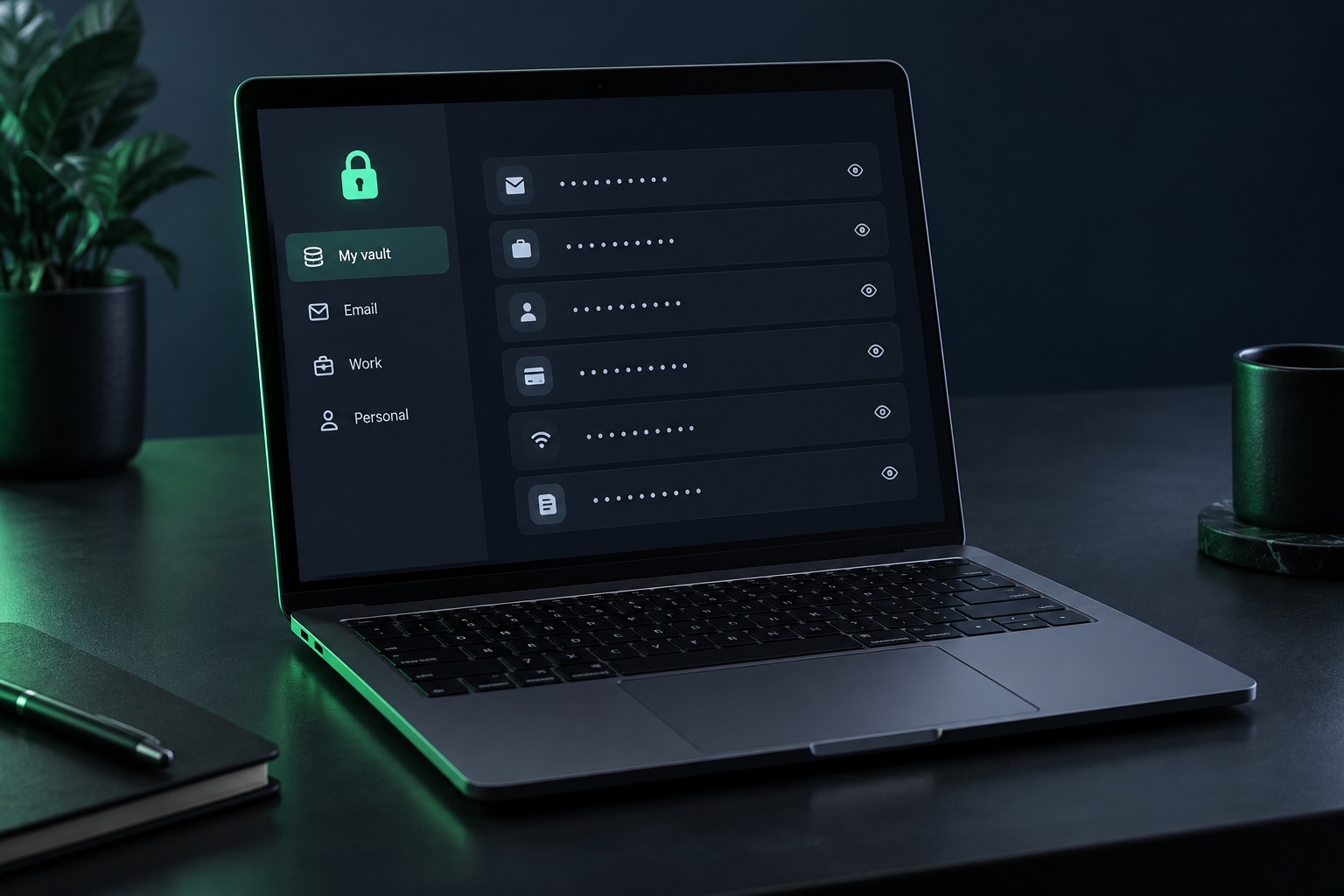 AI-generated illustration: A password manager keeps credentials in an encrypted vault.
Why Your Passwords Are Probably Not Safe
If you’re like most people, you have somewhere between 50 and 150 online accounts — email, banking, shopping, work tools, streaming services. Remembering a unique, strong password for every single one is unrealistic, so most people fall back on shortcuts: reusing the same password, tweaking it slightly (“Summer2024!” becomes “Summer2025!”), or writing passwords down somewhere easy to find.
The problem is that password reuse is the single biggest reason accounts get compromised. When one site suffers a data breach, attackers don’t just target that site — they take the leaked email-and-password combinations and try them everywhere else, a technique called credential stuffing. If you reused that password on your email or banking account, one small breach on an unrelated site can cascade into a much bigger problem.
A password manager solves this by generating and storing a long, random, unique password for every account, so a breach on one site can’t unlock the others.
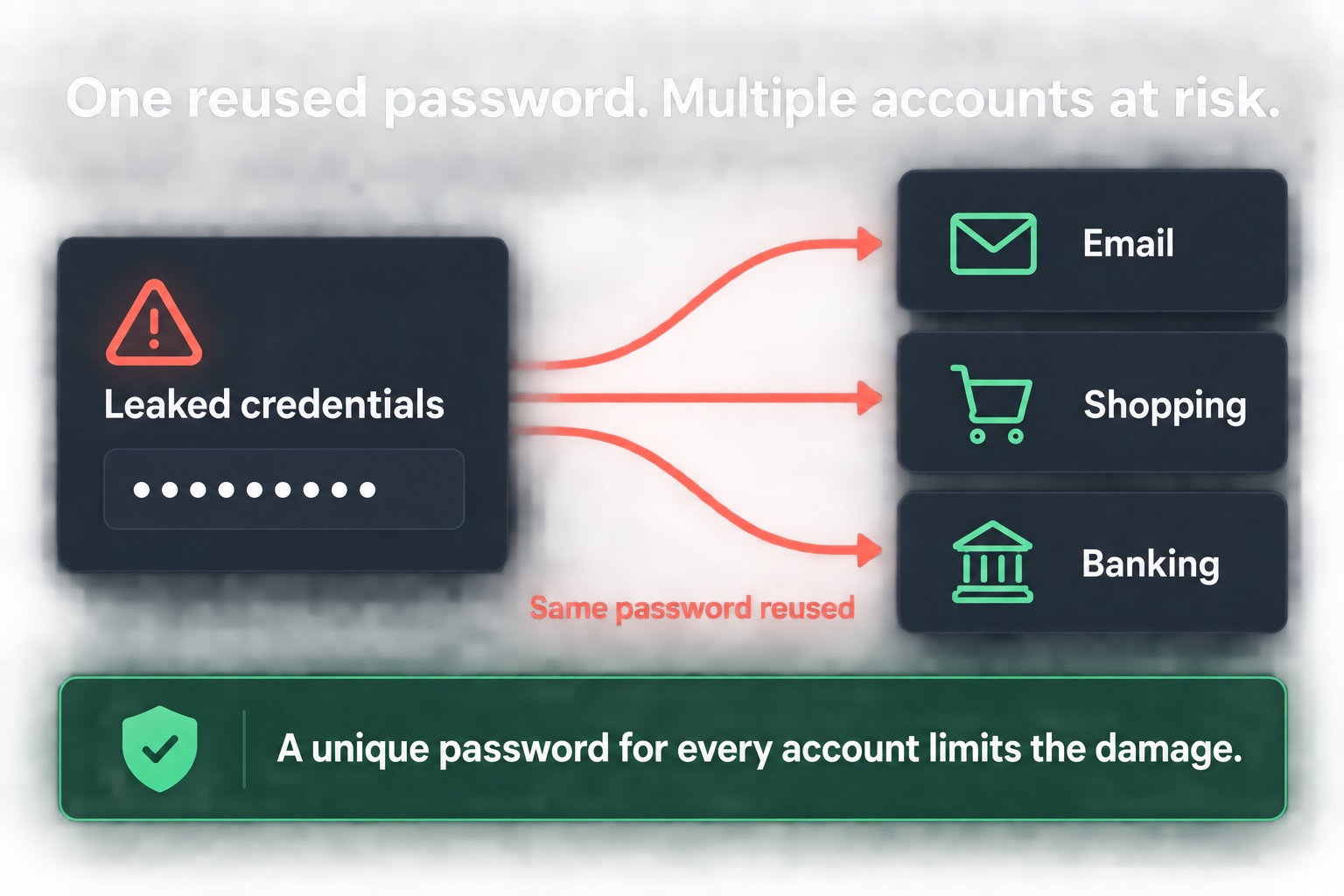 How credential stuffing works: one leaked password can compromise many accounts if it’s reused.
What a Password Manager Actually Does
At its core, a password manager is an encrypted vault that:
- Generates strong, random passwords for new accounts (think
xK9#mP2$vL8qR!wZinstead ofFluffy123) - Stores and autofills credentials so you don’t have to type or remember them
- Syncs across devices — phone, laptop, tablet — so your vault is available wherever you log in
- Encrypts everything locally using a master password only you know; reputable providers can’t read your stored data even if their servers are breached
- Flags weak, reused, or breached passwords so you know what to fix first
- Often includes extras like secure notes, passkey support, two-factor authentication (2FA) codes, and encrypted file storage
The one password you do need to remember is your master password — everything else is handled for you.
Built-In vs. Dedicated Password Managers
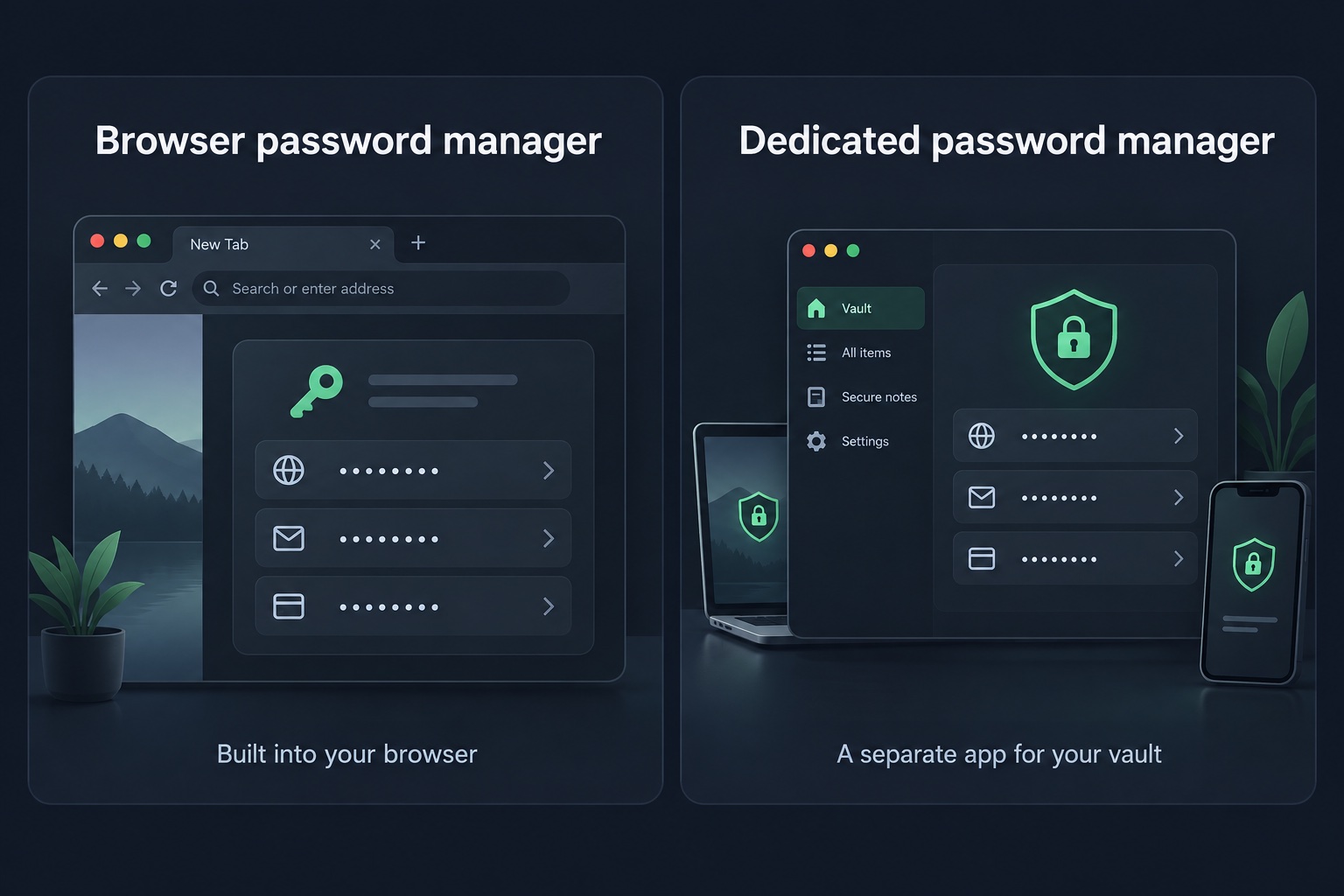
Browsers like Chrome, Safari, and Firefox, along with your phone’s operating system, now include basic password managers. They’re a real improvement over no password manager at all, but dedicated tools generally go further:
| Browser/OS Built-In | Dedicated Password Manager | |
|---|---|---|
| Cross-browser support | Limited | Works across all browsers and apps |
| Password strength auditing | Basic | Detailed, with breach monitoring |
| Secure sharing | Minimal | Built for sharing with family/team |
| Secure notes & documents | Rarely | Usually included |
| Emergency access | No | Often available |
| Platform lock-in | Yes | No |
If you only use one browser on one device, the built-in option may be enough. If you switch between browsers, devices, or share logins with family or coworkers, a dedicated password manager is worth the switch.
How to Choose the Right Password Manager
There’s no single “best” password manager — the right choice depends on your setup. Here’s what to actually weigh:
- Security architecture — Look for zero-knowledge encryption, meaning the provider itself can’t read your vault. Check whether the company has published independent security audits.
- Cross-platform support — Confirm it works on every device and browser you actually use.
- Passkey and 2FA support — Passkeys are increasingly replacing passwords entirely; a good manager should support them alongside traditional two-factor codes.
- Ease of use — A password manager only works if you’ll actually use it. Test the autofill experience before committing.
- Recovery options — Understand what happens if you forget your master password. Some tools offer secure recovery; others don’t, which means permanent lockout.
- Price and plan — Many solid options have a free tier for individuals, with paid tiers for family sharing or business use.
- Company track record — Search for the provider’s breach and incident history and how transparently they handled it.
Setting Up a Password Manager: A Quick-Start Checklist
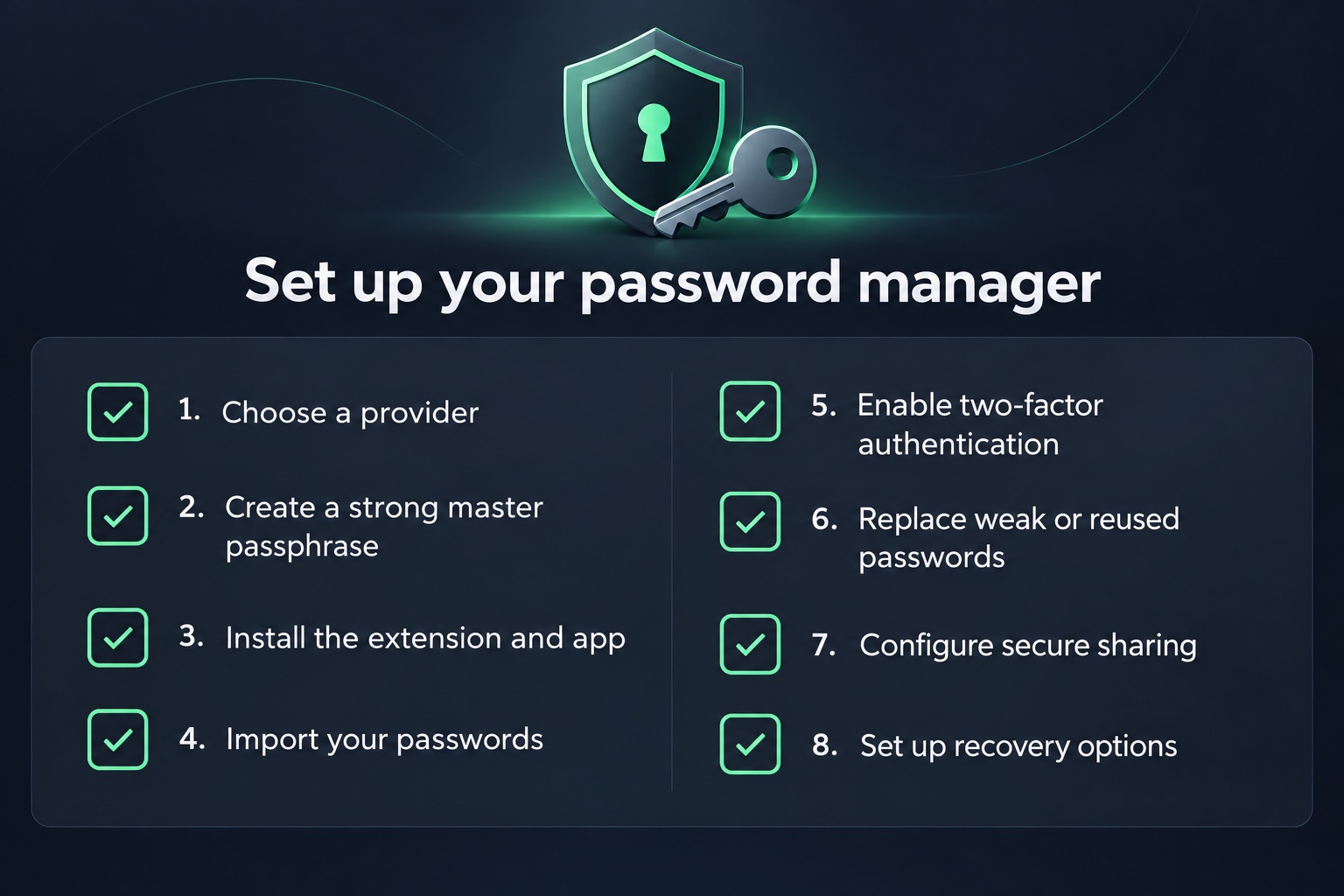
Getting started takes less time than most people expect.
- Choose a provider and create your account
- Set a strong, memorable master password (consider a passphrase of 4–5 random words)
- Install the browser extension and mobile app
- Import existing passwords from your browser or a spreadsheet
- Turn on two-factor authentication for the password manager account itself
- Run the built-in security audit and replace weak or reused passwords first
- Set up secure sharing for any accounts you share with family or a team
- Add recovery options in case you’re ever locked out
Common Mistakes to Avoid
- Reusing your master password anywhere else. It should be unique to your vault.
- Skipping 2FA on the password manager account. This is your single point of failure — protect it well.
- Storing your master password in plain text (a sticky note, an unencrypted document). If you need a backup, write it down and keep it somewhere physically secure.
- Ignoring breach alerts. Most managers will tell you when a stored password appears in a known breach — act on those notifications quickly.
Frequently Asked Questions
Are password managers actually safe to use? Reputable password managers use strong, audited encryption and are far safer than reusing passwords or storing them in a browser with no additional protection. The biggest remaining risk is a weak master password, which is why choosing a strong one matters most.
What happens if the password manager company gets hacked? With zero-knowledge encryption, your vault data is encrypted before it ever leaves your device, so even if a company’s servers are breached, attackers get only unreadable, encrypted data — not your actual passwords.
Can I use a password manager without an internet connection? Most password managers cache your vault locally, so autofill and access still work offline; changes sync once you’re back online.
Do I still need two-factor authentication if I use a password manager? Yes. A password manager protects your passwords; 2FA protects the login itself, adding a second layer in case a password is ever compromised.
The Bottom Line
Switching to a password manager is one of the highest-impact, lowest-effort security upgrades you can make. It removes the temptation to reuse passwords, protects you against credential-stuffing attacks, and takes the mental load of remembering dozens of logins off your plate entirely. Pick a provider that fits your devices and habits, spend twenty minutes setting it up, and you’ll be meaningfully more secure by the end of the day.